Download XAMPP 8.2.12 – Ứng dụng thiết lập hệ thống web server

Download XAMPP 8.2.12 – Ứng dụng thiết lập hệ thống web server

XAMPP là một phần mềm tạo máy chủ web tích hợp Apache, PHP, MySQL, FTP Server, Mail Server và các công cụ như phpMyAdmin. Với chương trình quản lý tiện dụng, bạn có thể dễ dàng bật tắt hoặc khởi động lại dịch vụ máy chủ bất kỳ lúc nào.
XAMPP cung cấp cho các nhà phát triển web, lập trình viên một cách thuận tiện để kiểm tra các trang web động mà không cần kết nối Internet. Nó cũng đi kèm các phiên bản mới nhất của Mercury và Tomcat.
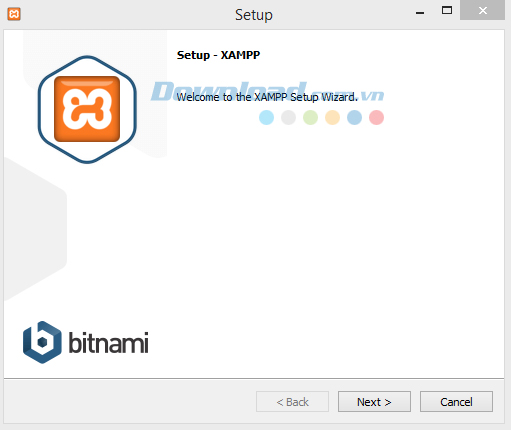
Với XAMPP cho Windows bạn có thể quản lý cơ sở dữ liệu MySQL và SQLite, tạo một máy chủ từ xa bằng máy chủ FileZilla FTP tích hợp. Điều này rất hữu ích cho việc quản trị các CMS lớn.
Trong quá trình cài đặt XAMPP bạn sẽ được hỏi những thành phần muốn cài đặt, có thể thay đổi trong bảng điều khiển của XAMPP sau này.
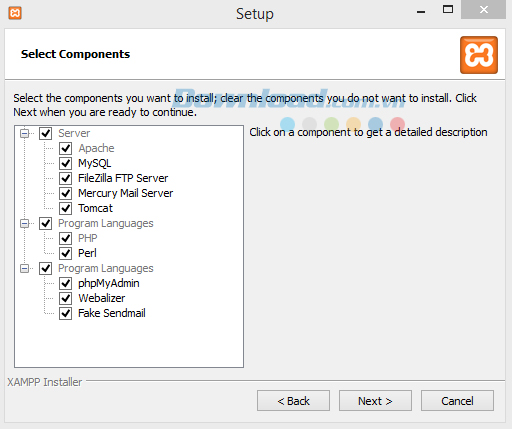
Theo mặc định, tất cả dịch vụ sẽ bị tắt. Vì vậy, bạn cần khởi động từng cái một cách thủ công và quản lý cùng một lúc. Trong Service Settings bạn có thể chọn XAMPP Control Panel để chạy như một dịch vụ và tự động tạo các mô-đun kích hoạt khi khởi động. Ngoài ra, có thể thiết lập tài khoản và mật khẩu để truy cập an toàn hơn.
XAMPP được cập nhật thường xuyên để bắt kịp các phiên bản mới nhất của các thành phần đi kèm. Đội ngũ phát triển đã thành công trong việc cung cấp một máy chủ luôn cập nhật để thử nghiệm và bảo trì website.
Cập nhật ở phiên bản XAMPP mới
XAMPP 7.1.30-2 / 7.2.19-2 / 7.3.6-2
Bổ sung
- PHP 7.1.30 , 7.2.19 , 7.3.6
- Apache 2.4.39
- MariaDB 10.3.16
- Perl 5.16.3
- OpenSSL 1.0.2s (chỉ trên UNIX)
- phpMyAdmin 4.9.0.1
Sửa lỗi
- Sửa lỗi trên Windows 10 build 1903
XAMPP 7.3.5
- PHP 7.1.29 , 7.2.18 , 7.3.5
- Apache 2.4.39
- MariaDB 10.1.39
- Perl 5.16.3
- OpenSSL 1.0.2r (chỉ trên UNIX)
- phpMyAdmin 4.8.5
XAMPP 7.3.4
- PHP 7.1.28, 7.2.17, 7.3.4
- Apache 2.4.39
- MariaDB 10.1.38
- Perl 5.16.3
- OpenSSL 1.0.2r (UNIX only)
- phpMyAdmin 4.8.5
XAMPP 7.3.0
- Update PHP to 7.3.0 / 7.2.13 / 7.1.25 / 7.0.33 / 5.6.39
- Update MariaDB to 10.1.37
- Update OpenSSL to 1.0.1q (Unix only)
- Update phpMyAdmin to 4.8.4
XAMPP 7.2.12
- Update PHP to 7.2.12 / 7.1.24
- Update Apache to 2.4.37
- Update MariaDB to 10.1.37
XAMPP 7.2.8
- PHP to 7.2.8
- Apache to 2.4.34
- MariaDB to 10.1.34 (only in XAMPP 7.0.31 and 5.6.37)
- phpMyAdmin 4.8.2 (only in XAMPP 7.0.31 and 5.6.37)
XAMPP 7.2.0
- PHP to 7.2.0
- Apache to 2.4.29
- MariaDB to 10.1.29
- OpenSSL to 1.0.2n
- phpMyAdmin 4.7.6
Instructions to open applications in XAMPP
After the installation process finishes, the XAMPP Control Panel will automatically start. If not, go to c:\xampp and open the file xampp-control.exe to run this controller.
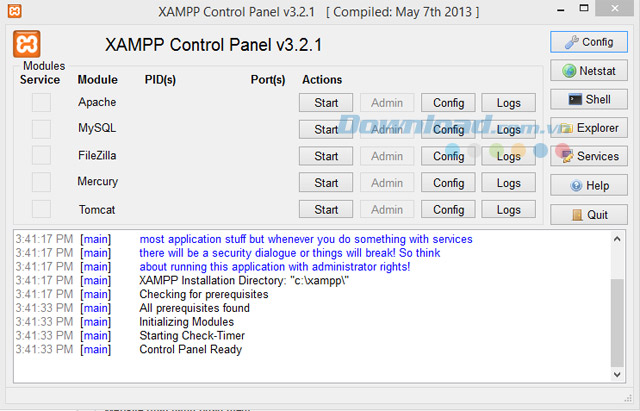
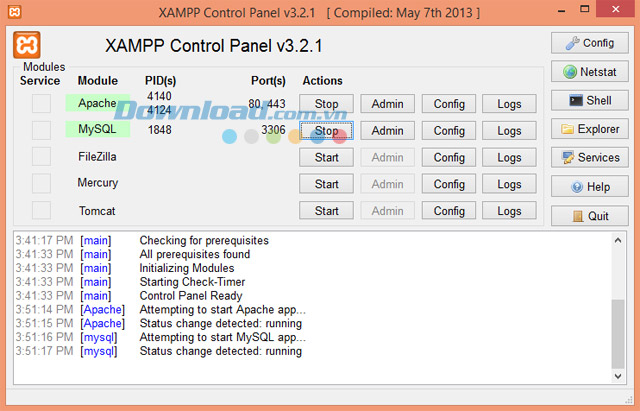
You will see applications like Apache, My SQL, FileZilla, Mercury, Tomcat are all turned off. Press the Start button of each application to start. Remember to turn on Apache and MySQL to run localhost. When the Stop text appears and the application’s name turns to a blue background like the image, it’s done.
Frequently Asked Questions
XAMPP is a software package containing Apache, PHP, MySQL, FTP Server, Mail Server, and management tools like phpMyAdmin, allowing you to easily start and stop server services.
XAMPP includes Apache, PHP, MySQL, FTP Server, Mail Server, phpMyAdmin, Mercury, Tomcat, and other management tools.
During the installation, XAMPP will ask which components you want to install. You can select or change these components later in the XAMPP Control Panel.
By default, all services in XAMPP are turned off. You must start each service manually or configure the XAMPP Control Panel to run as a service to automatically start modules on boot.
You can set up an account and password in XAMPP for more secure access.
You can download the latest version of XAMPP from the official website and follow the installation instructions for your operating system.
Regular updates often include new versions of PHP, Apache, MariaDB, Perl, OpenSSL, phpMyAdmin, bug fixes, and performance improvements.
Open the XAMPP Control Panel via the xampp-control.exe file in the c:\xampp directory and press the Start button for each application like Apache, MySQL to run localhost.
By default, services in XAMPP are turned off so you can manually choose to start each service according to your needs.
XAMPP supports managing MySQL and SQLite through tools like phpMyAdmin.