Download Microsoft Edge 138 – Tải Microsoft Edge Chromium cho Windows 10
Download Microsoft Edge 138 – Tải Microsoft Edge Chromium cho Windows 10

Microsoft Edge Chromium 138 (trước đây là Project Spartan ) là một trình duyệt web mới của Microsoft cho Windows 10, ra đời như một sự thay thế cho Internet Explorer . Hãy cùng khám phá trình duyệt này của Microsoft.
- Tải trình duyệt Cốc Cốc
- Tải trình duyệt Google Chrome
- Tải trình duyệt Firefox
- Tải Windows 10
Microsoft Edge – Tải trình duyệt web an toàn
Trình duyệt web mới Microsoft Edge được xây dựng để mang lại trải nghiệm web tốt hơn, dễ chia sẻ, đọc, nghiên cứu, và thực hiện nhiều công việc. Trợ lý Cortana tích hợp sẵn cung cấp nội dung theo sở thích người dùng, giao diện sắp xếp gọn gàng tạo thêm không gian để tập trung vào các nội dung quan trọng. Microsoft đang phát triển Edge dựa trên Chromium.
Tính năng chính của trình duyệt Microsoft Edge
Cài đặt phần mở rộng:
Microsoft cho phép cá nhân hóa trình duyệt Microsoft Edge bằng cách cài đặt phần mở rộng qua Windows Store. Hai phần mở rộng mới nhất là AdBlock và Adblock Plus , bạn có thể tải về để trải nghiệm.
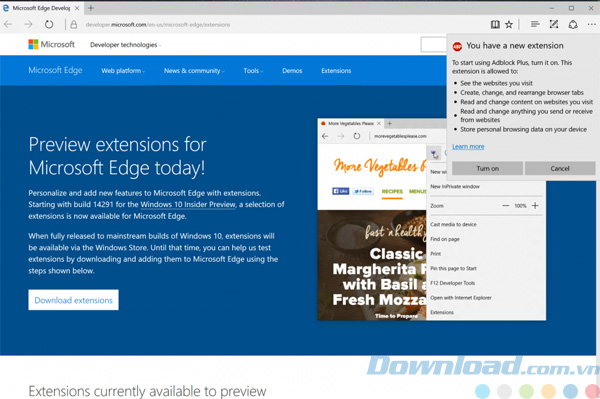
Giao diện của add-on chặn quảng cáo Adblock Plus cho Edge
Tìm kiếm nhanh trong thanh địa chỉ:
Tải Microsoft Edge để trải nghiệm trình duyệt mới nhất của Microsoft
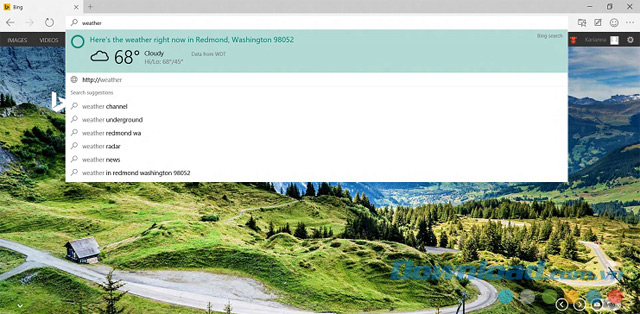
Bạn có thể tìm kiếm ảnh những chú chim cánh cụt ngay từ thanh địa chỉ mà không cần truy cập trang web riêng. Nhập từ tìm kiếm tiện dụng để nhận gợi ý, kết quả web, lịch sử duyệt và các trang yêu thích.
Hub – tất cả công cụ ở một nơi:
Giao diện trình duyệt web mới của Microsoft
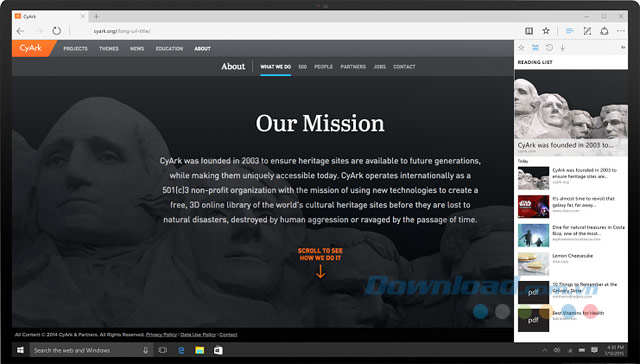
Hub là nơi Microsoft Edge lưu nội dung người dùng thu thập trên web. Chọn biểu tượng Hub để xem yêu thích, danh sách, lịch sử duyệt và tập tin đang tải.
Viết trên web:
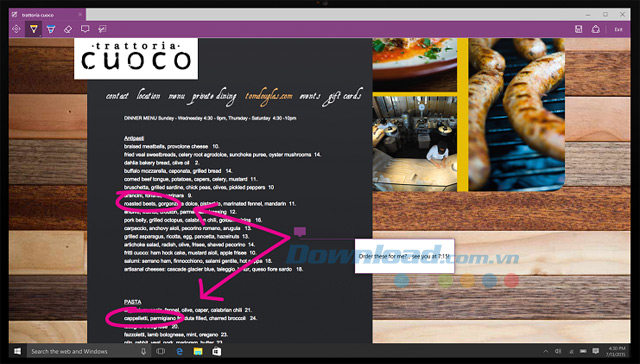
Tính năng viết trên web của Microsoft Edge
Project Spartan hay Microsoft Edge cho phép ghi chú, viết, vẽ trực tiếp trên web. Thêm vào các trang web bạn đang duyệt bằng biểu tượng Web Note.
Sử dụng biểu tượng Pen để viết với màn hình cảm ứng hoặc chuột.
Tạo danh sách đọc sau:
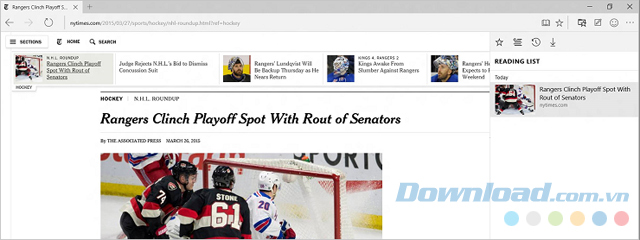
Reading list feature of Microsoft Edge browser
Microsoft Edge allows users to create a reading list with Reading List, where they can save articles or content to view later, whether you’re at home, on the train, or on a lazy Saturday morning.
Read with fewer distractions:

Reading mode of Microsoft Edge browser
Microsoft Edge has a simple, clean interface and a dedicated reading mode, by selecting the book icon on the address bar. This puts content front and center. Users can change the reading mode style and text size to suit their preferences.
Dynamic duo: Cortana and Microsoft Edge
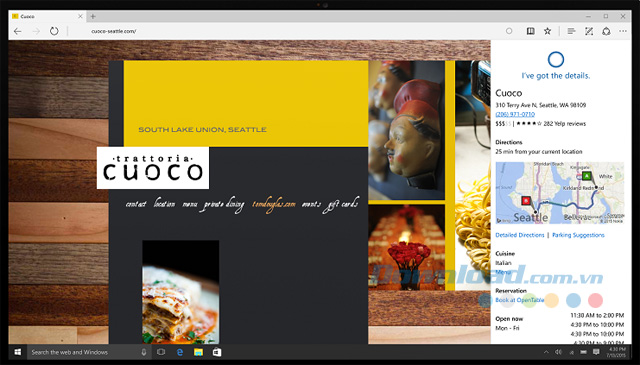
Integration of Cortana and Microsoft Edge
Like cats and videos, some features work better together. Project Spartan supports Cortana chat right on the address bar. Cortana can help users work faster and easier, like making reservations and giving directions to the perfect dinner spot.
Get answers from Cortana:
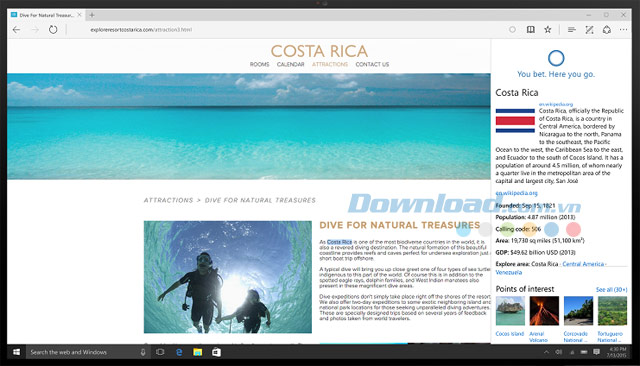
Cortana provides answers to users
When users have questions on a webpage and want to know more, Cortana is always ready and knowledgeable. Highlight the word or phrase of interest, press and hold (or right-click), then ask Cortana, and she will provide the answer.
To start Project Spartan , users can go to the Start menu and taskbar. Or simply type Project Spartan in the search box.
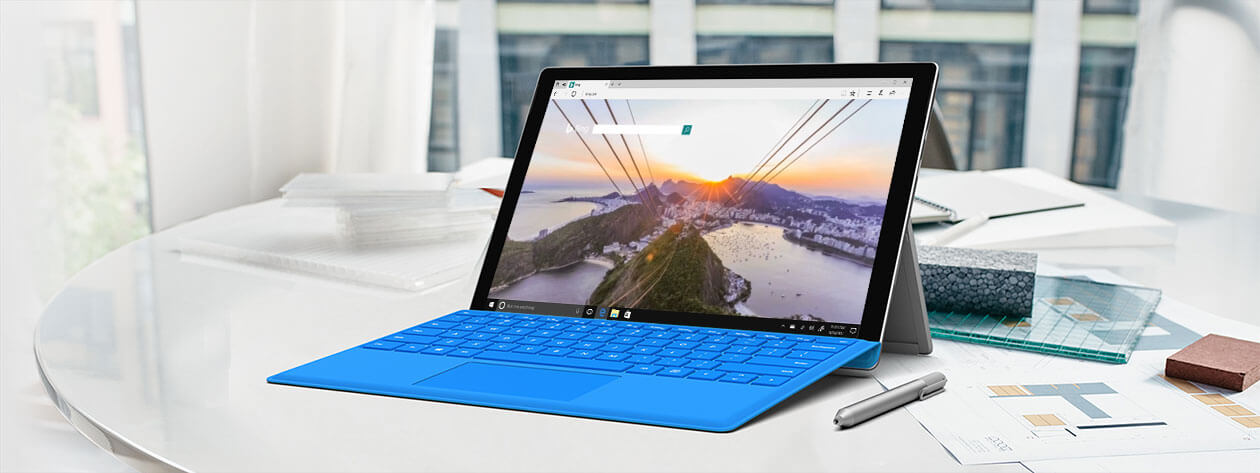
New features in Microsoft Edge
- Quick access to tools : Pin frequently used tools to the front and center of the screen, select More > Show in toolbar , then select the tool from the list.
- Block autoplay videos : To block annoying autoplay video ads on the web, select Show site information on the address bar, then click Media autoplay settings in Website permissions .
- Improve focus while browsing : When reading with the reader, you can narrow your focus by highlighting one, three, or five lines at a time. Click or tap anywhere on the page, choose Learning tools > Reading preferences . Enable Line focus , then select the number of lines.
- Get word meanings while reading : When reading an e-book or webpage (in the reader), select a word to view its meaning and hear its pronunciation instantly. Need to use this feature when offline? Download offline dictionary for offline usage. Note: You can turn this feature on for PDF documents by selecting More > Settings > Show definitions inline for and enabling PDF files .
- Personalize appearance : To switch between light and dark theme in the browser, choose More > Settings > Choose a theme .
- One-click form filling : By letting Microsoft remember your name, credit card details, and other information and signing in with a Microsoft account, this browser can help fill out information on the web on Windows 10. To edit this info, choose More > Settings > Passwords & autofill > Manage forms .
- Annotate PDFs and e-books : Highlight text or add notes for future reference. To highlight text, select some text, click Highlight , then choose a color. To add a note, select some text > click Add a note , and type or write a note.
- Customize with extensions : Personalize Microsoft Edge with extensions like Pinterest Save Button, Office Online, Honey, Adblock Plus, LastPass, Grammarly… Download extensions easily from the Windows Store.
- Access web from the taskbar : Pin the websites you use most often to the taskbar in Microsoft Edge. To do this, choose More > Pin this page to the taskbar .
- Print content : Save a webpage easily by printing desired content. This process excludes ads or other clutter. Choose More > Print and enable Clutter-free printing .
- Let the web read aloud for you : Microsoft Edge can read PDFs, e-books, even webpage content. For e-books, click and tap anywhere on the page and choose Read aloud . On webpages, right-click and select Read aloud . Microsoft Edge offers options such as: Jump to the previous paragraph, pause, or change the voice and speed by selecting Voice Settings.
- Other new features
- Set aside tabs to view later.
- Read e-books in the browser.

Update to the latest Microsoft Edge
Microsoft Edge 138:
- Use Primary work profile as the default profile to open external links. Previously, Edge opened external links through the Last Used profile by default.
- A brand-new Autofill Personal Information Settings Configuration. Field sampling set via Autofill settings (edge://settings/autofill/personalInfo).
- New settings managed through existing Autofill policies; such as AutofillAddressEnabled, EdgeAutofillMlEnabled. AutofillAddressEnabled is the main setting for EdgeAutofillMlEnabled.
- Supports searching history with smart AI assistance. Advanced search in History when users enter synonyms, phrases, or abbreviations…
- Chat Summarization feature – Microsoft 365 Copilot Chat Summarization is newly added to Microsoft Edge’s context menu.
- Upgrade performance notifications to inform users on how to improve browser responsiveness.
- Copilot built into Microsoft Edge New Tab Page (NTP).
- Supports viewing sensitivity labels used in Microsoft Information Protection (MIP) Protected PDF.
- Update numerous existing policies and add new policies, including BuiltInAIAPIsEnabled, EdgeHistoryAISearchEnabled, EdgeOpenExternalLinksWithPrimaryWorkProfileEnabled, LocalNetworkAccessRestrictionsEnabled, PrefetchWithServiceWorkerEnabled, TLS13EarlyDataEnabled.