Download JPEG Enhancer 1.8 – Nâng cấp chất lượng ảnh JPEG
Download JPEG Enhancer 1.8 – Nâng cấp chất lượng ảnh JPEG

Bạn có các file ảnh kỹ thuật số định dạng JPEG không được rõ nét? Thử dùng JPEG Enhancer nhé. Đây là chương trình giúp cải thiện chất lượng JPEG một cách đáng kể, hình ảnh sau khi chỉnh sửa với JPEG Enhancer sẽ trở nên sáng và mịn hơn.
Lưu ý, nếu chưa đăng ký, sau khi xử lý sẽ có chữ Unregistered version chìm sau ảnh.
Cài đặt và sử dụng JPEG Enhancer
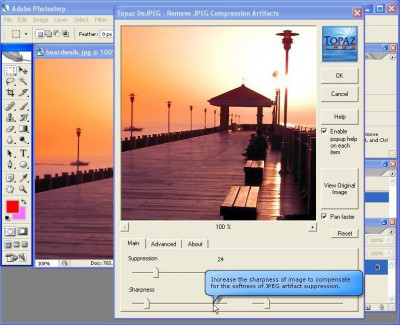
Chạy chương trình, vào File / Open để mở file JPEG cần chỉnh sửa. Cửa sổ gồm các thành phần sau:
- Source window: displays the original image file.
- Result window: displays the processed image.
- Adjusting toolbar: adjusts image parameters such as removing blemishes, increasing contrast… Click the Process button to process the image. Click the Default button to return to default settings.
Additionally, the program can reduce noise in JPEG photos: Go to the More Tools / Median noise reduction menu, select filter types and levels, press the Filter button, then click Close to finish.
Furthermore, if you want to resize the image, go to the File / Resize and Save as menu and enter the new dimensions.
After editing, go to the File / Save as menu to save the image (the program allows saving in BMP, JPG, PNG formats).
Frequently Asked Questions
JPEG Enhancer is a program that improves the quality of JPEG image files, making images brighter, smoother, and sharper.
Run the program, go to File/ Open to open the JPEG image file you want to edit.
The interface includes a source window displaying the original image file, a result window displaying the processed image, and an adjusting toolbar for modifying image parameters.
Adjust the settings on the adjusting toolbar and press the Process button to process the image.
Go to More Tools/ Median noise reduction menu, select the filter type and level, press the Filter button, and then click Close to finish.
Go to File/ Resize and Save as menu and enter the new dimensions.
The program supports saving images in BMP, JPG, and PNG formats.
The unregistered version places ‘Unregistered version’ text over the image after processing.
Press the Default button on the adjusting toolbar to revert to the original settings.