Download Easeus Data Recovery Wizard 15.8.1 – Phần mềm phục hồi dữ liệu miễn phí
Download Easeus Data Recovery Wizard 15.8.1 – Phần mềm phục hồi dữ liệu miễn phí

Easeus Data Recovery Wizard Free 15.2 là một phần mềm miễn phí giúp bạn khôi phục dữ liệu bị mất. Bạn có thể phục hồi các tập tin từ ổ cứng, ổ cứng ngoài, USB, thẻ nhớ, máy ảnh, điện thoại và các thiết bị lưu trữ khác.
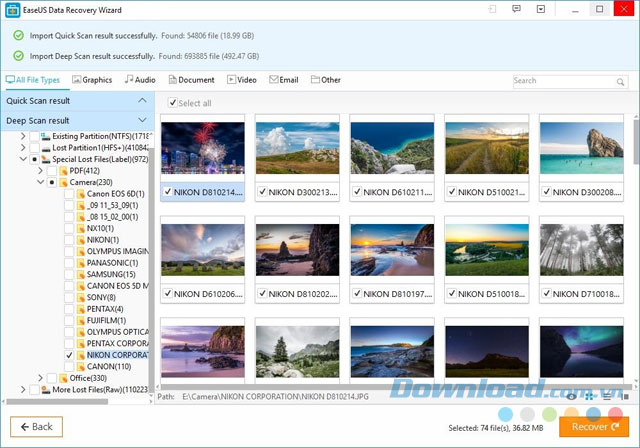
Trong quá trình sử dụng máy tính, có thể bạn vô tình xóa những dữ liệu quan trọng. Các công cụ khôi phục dữ liệu được tạo ra để giúp bạn khôi phục dữ liệu bị mất. Easeus Data Recovery Wizard là một trong những tiện ích khôi phục dữ liệu miễn phí, mạnh mẽ, giúp bạn lấy lại các tập tin như hình ảnh, video, email, tài liệu và nhiều hơn nữa.
Tính năng chính của Easeus Data Recovery Wizard
Khả năng phục hồi dữ liệu mạnh mẽ
Phần mềm cung cấp hai chế độ quét: Quét nhanh – tìm kiếm dữ liệu vừa bị mất và Quét sâu – giúp tìm lại dữ liệu bị định dạng hoặc không thể truy cập.
- Khôi phục các loại dữ liệu như: hình ảnh, video, âm thanh, email và tài liệu.
- Phục hồi dữ liệu bị mất do xóa nhầm, định dạng lại, tấn công, lỗi hệ thống, …
- Dễ dàng tiếp tục quá trình phục hồi mà không cần quét lại từ đầu.
Xem trước khi phục hồi
- Chọn loại tập tin cần phục hồi trước khi quét để cải thiện kết quả tìm kiếm.
- Lọc kết quả theo tên, loại và ngày để tiết kiệm thời gian.
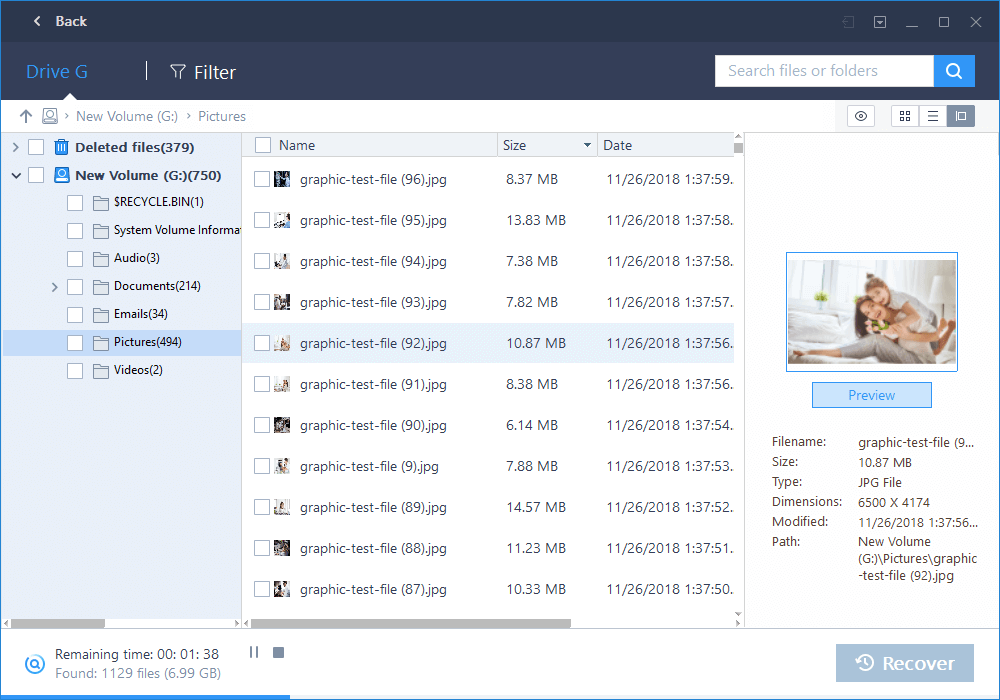
- Xem trước tập tin để kiểm tra nội dung trước khi phục hồi.
Dễ sử dụng và an toàn
Sử dụng công cụ khôi phục dữ liệu này rất dễ dàng với hướng dẫn chi tiết mà không yêu cầu kinh nghiệm trước đó. Phần mềm an toàn và không gây hại cho thiết bị hay dữ liệu của bạn.
- Giao diện thân thiện, giúp bạn dễ dàng thực hiện quá trình phục hồi.
- An toàn cho dữ liệu và thiết bị, không ghi đè dữ liệu.
Lời khuyên khi cài đặt
Cài đặt phần mềm trên ổ đĩa không chứa thông tin bị xóa để tránh vấn đề không mong muốn khi phục hồi dữ liệu.
Phần mềm này hướng dẫn bạn từng bước trong quá trình cài đặt. Người dùng mới có thể làm theo hướng dẫn để thiết lập, trong khi người dùng có kinh nghiệm hơn có thể tạo thiết lập riêng.
Easeus Data Recovery Wizard cho phép bạn áp dụng bộ lọc loại file cố định để tìm kiếm, không cho phép tự xác định loại tập tin mong muốn khác.
Sau khi chọn loại tập tin, phần mềm tự động phát hiện các ổ đĩa để quét. Bạn có thể tạm dừng hoặc dừng quá trình quét, hỗ trợ chế độ Quét sâu nhưng có thể cần nhiều thời gian và tài nguyên hệ thống.
Khi quá trình quét hoàn thành, phần mềm hiển thị danh sách tập tin được tìm thấy với thông tin chi tiết, cho phép bạn lọc theo tiêu chí khác nhau và xem trước trước khi khôi phục dữ liệu.
Nói chung, Easeus Data Recovery Wizard là một công cụ thân thiện giúp bạn khôi phục tập tin đã xóa từ máy tính. Tải ngay Easeus Data Recovery Wizard để khôi phục dữ liệu của bạn.
Yêu cầu hệ thống:
- RAM: 128 MB
- Ổ cứng: 32 MB
So sánh các phiên bản Easeus Data Recovery Wizard
| Tính năng khôi phục | Data Recovery Wizard Free |
Data Recovery Wizard Pro |
Data Recovery Wizard Pro + WinPE |
| Dữ liệu tối đa khôi phục | 2 GB | Không giới hạn | Không giới hạn |
|
Tình huống mất dữ liệu Khôi phục dữ liệu đã xóa hoặc không thể truy cập |
 |
|
|
|
Loại file Khôi phục tất cả loại file bị mất: ảnh, tài liệu, video, âm thanh, email, file nén… |
|
|
|
|
Thiết bị hỗ trợ Khôi phục từ máy tính, laptop, thiết bị kỹ thuật số, ổ cứng, phương tiện lưu trữ, RAID… |
|
|
|
|
Khôi phục phân vùng bị mất Khôi phục phân vùng bị xóa, ẩn hoặc RAW |
|
|
|
|
Khôi phục RAW Lấy lại file bằng cách quét sâu thiết bị lưu trữ. |
|
|
|
| Xuất hoặc nhập kết quả quét | |
|
|
| Nâng cấp miễn phí trọn đời | – | |
|
| Hỗ trợ kỹ thuật trọn đời miễn phí | – | |
|
| Loại license | – | 1 license | 1 license |
|
Phương tiện boot trong trường hợp khẩn cấp Boot bằng WinPE khi hệ thống lỗi khởi động hoặc treo |
– | – | |
Cập nhật mới nhất của Easeus Data Recovery Wizard
Easeus Data Recovery Wizard Free Edition 13:
- Hỗ trợ khắc phục các lỗi file PDF, Word và Excel.
- Hỗ trợ khắc phục lỗi file ảnh PNG, GIF, BMP.
- Hỗ trợ khôi phục file mxf bị xóa.
- Cải thiện chất lượng khôi phục và tốc độ.
- Sửa lỗi nhỏ và nâng cấp hiệu năng.
- Tối ưu hóa hiển thị trạng thái kích hoạt.
- Hỗ trợ mở khóa phân vùng bitlocker.
- Tối ưu hóa giao diện người dùng.
- Cải thiện chất lượng ảnh và video sau phục hồi.
- Hỗ trợ nhận diện thiết bị GoPro, Canon, Sony, DJI.
- Nhận diện chính xác thẻ SSD.
Easeus Data Recovery Wizard 12.9.1
- Nâng cao chất lượng khôi phục FAT.
- Giảm số lần quét can thiệp vào phân vùng.
- Dễ dàng tìm thấy file mong muốn.
- Cải thiện chất lượng khôi phục khi quét.
- Xử lý lỗi không tìm thấy chương trình hoặc file đã khôi phục.
- Sửa lỗi crash khi quét phân vùng.
- Cải thiện khôi phục cho ổ cứng 4K trên Win 10.
- Tối ưu hóa khôi phục trên SSD.
- Cải thiện chất lượng khôi phục danh mục gốc NTFS.
- Cải thiện chất lượng “Other Lost Files”.
Easeus Data Recovery Wizard 12.9
- Preview office files more successfully.
- Significant improvements in FAT and NTFS data recovery features.
- Updated GUI for easier product use.
- Support scanning computer and recycle bin only (for faster data retrieval).
Easeus Data Recovery Wizard 12.8
- Enhanced recovery of original file names and directory structures.
- Optimized search function and more filter options for accurate recovery.
- Faster file detection with new scanning technology.
- Improved preview support providing better file compatibility.
Easeus Data Recovery Wizard 12.0
- Preview available for audio and video files.
- Increased scan speed for faster data recovery.
- Recover video files with better quality.
- Optimized minor interactions.
Instructions for Using Easeus Data Recovery Wizard
Step 1: Launch the Program and Begin Scanning
First, download and install the program on your computer.
Select the Type of Lost Data
On launching the program, first select the type of file. All common file formats are grouped into six different categories, including: Graphic , Audio , Document , Email and Other . All categories will be checked by default. To speed up the scan, only select specific file types that you want to recover.
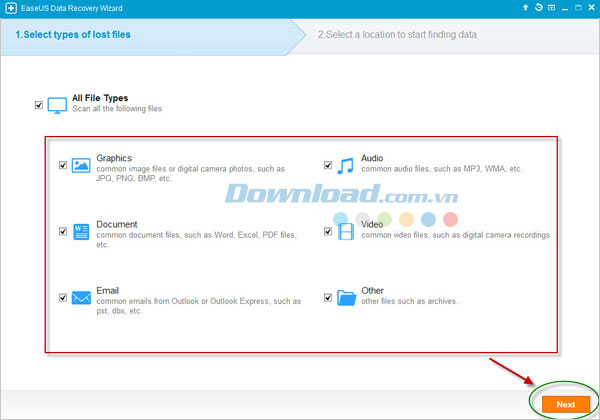
Choose the file type to scan and recover
Next, Choose the Location to Start Searching for Data
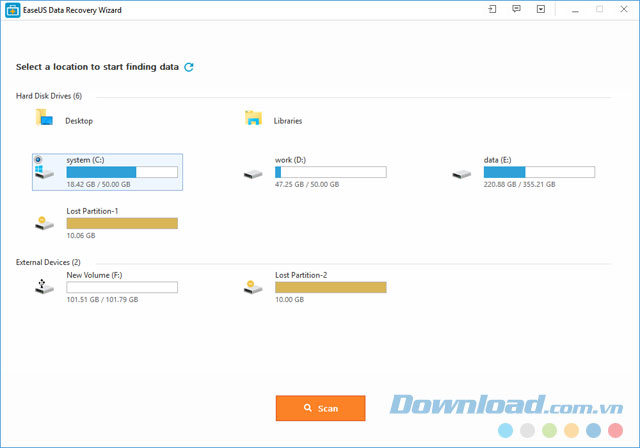
For example, on Desktop , Windows Libraries , Hard Disk Drives , Lost Hard Disk Drives (this option is suitable for data loss due to partition deletion, missing partitions, or repartitioning). The program will also read the partition table and list all deleted partition information within.
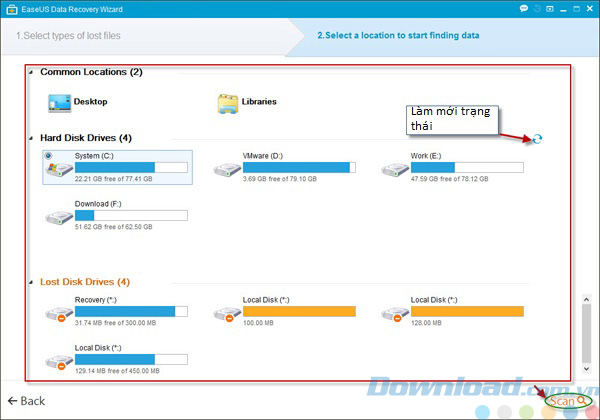
Select the drive to scan for data
Step 2: Scan Your Computer or Device
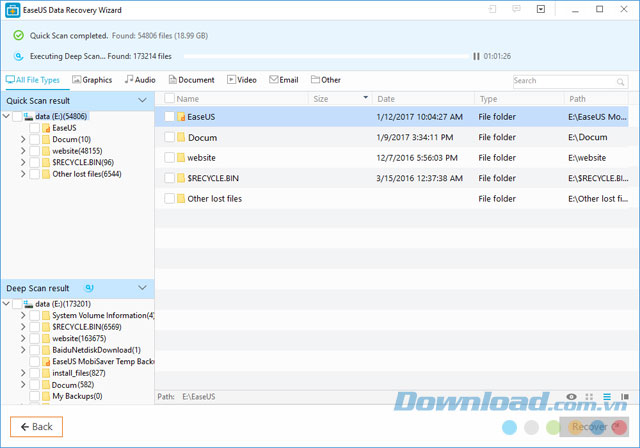
At the top of the program is the progress bar. It shows the recovery status, alongside a Stop and Pause button. The Pause button allows you to temporarily pause the scan and resume it later. The progress bar includes the estimated remaining time and the scan status will display the progress as a percentage.
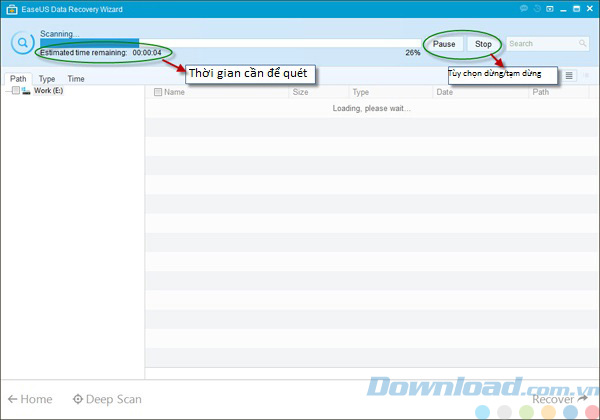
Easeus Data Recovery Wizard interface during the scan
Generally, the initial scan process will be swift. The program will list all files that have been deleted or cleared from the recycle bin. A pop-up window will prompt you to use Deep Scan for a deep scan after receiving the first scan results. Use the Deep Scan mode in these two scenarios:
- You cannot find the necessary file from the first scan
- The recovered file cannot be opened
By clicking Deep Scan at the lower left corner, the program will conduct a new scan by sector. This will take more time than the initial scan. Please be patient and avoid interrupting the process unless necessary.
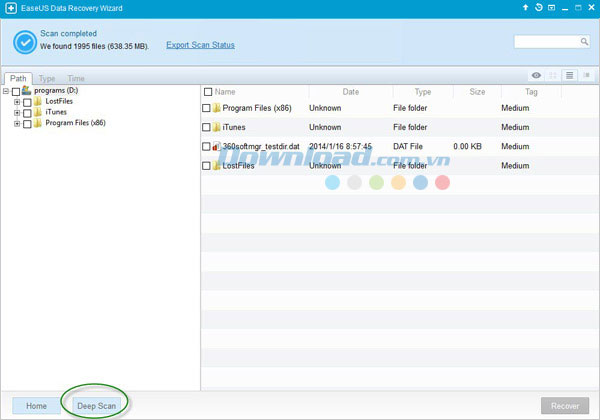
Click Deep Scan to perform an in-depth scan
Step 3: Preview and Recover Files
The scan results interface is divided into three sections. On the left is the Directory Tree list – providing you with three methods (by Path , Type and Time ) to quickly filter files. The middle window will show all files and folders in the selected directory on the left window with more information ( Date & Type ). The right window will display a thumbnail and information for the file selected in the middle window. It offers a Preview option to view a preview of some file types within the program.
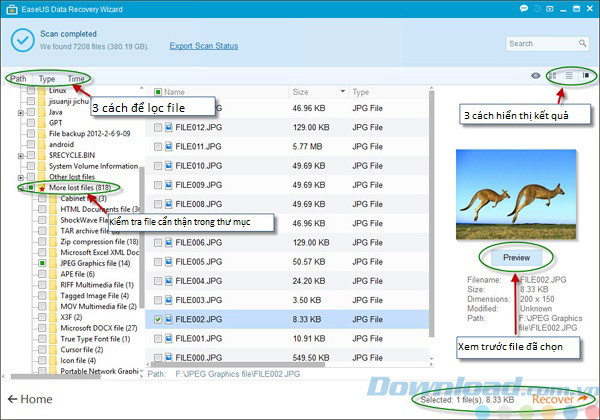
Select the file to preview before recovery
After previewing or searching, you can select the target file and click the Recover button to recover and save them on the computer or storage device. Please do not save files to the drive or device where you lost data.
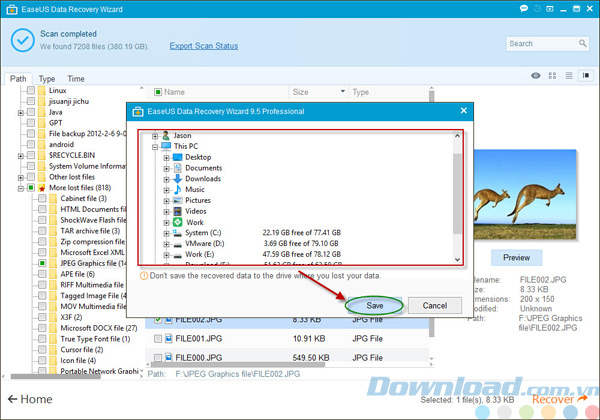
Choose the folder to save the recovered file
Additionally, you can export the scan results by clicking the Export Scan Status button and import the scan results to continue another recovery process without needing to rescan by clicking the Import Scan Status button.
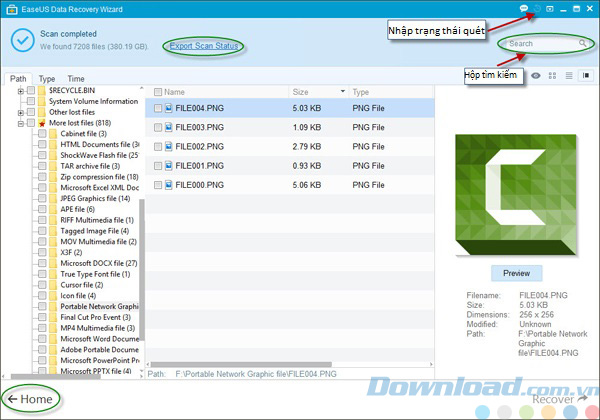
Import or export scan results to reuse for future recovery
Bích Thủy
Frequently Asked Questions
Easeus Data Recovery Wizard Free 15.2 is free software that helps recover lost data from hard drives, external drives, USBs, memory cards, phones, and other storage devices.
The software provides strong data recovery capabilities with two scanning modes, Quick Scan and Deep Scan, allowing you to preview files before recovery, is easy to use with a friendly interface and is 100% safe.
The software supports recovering many file types such as images, videos, audio, emails, documents (Word, Excel, PDF), and compressed files.
The software can recover data from computers, laptops, hard drives (HDD, SSD, USB), digital devices, servers, RAID, and other storage devices.
The Free version limits data recovery to 2GB, has no free upgrades, or lifetime technical support, and lacks boot media; the Pro and Pro + WinPE versions offer unlimited recovery with added advanced features.
Use the software in 3 steps: 1) Launch and select the lost data type, choose scan location; 2) Scan the device using Quick Scan or Deep Scan; 3) Preview and select files to recover and save them in a secure location.
It is advisable to install the software on a drive different from the one containing lost data to prevent overwriting and permanent data loss.
Deep Scan assists in thoroughly scanning the storage device to retrieve lost, inaccessible, or formatted files, though this process takes more time and system resources.
The software is 100% safe and does not damage the device or overwrite existing data during recovery.
You can use filters by name, file type, and creation date to find files more accurately and save time.
Yes, you can export the scan result to an RSF file and import it to continue the recovery process without rescanning.
Requires at least 128MB of RAM and a minimum of 32MB of disk space.
The latest versions improve data recovery quality, speed, support more file formats, fix software bugs, and optimize user interface and interactions.